

What are Processes?
A Process is a reusable automation definition. You create it once, then run it whenever you need.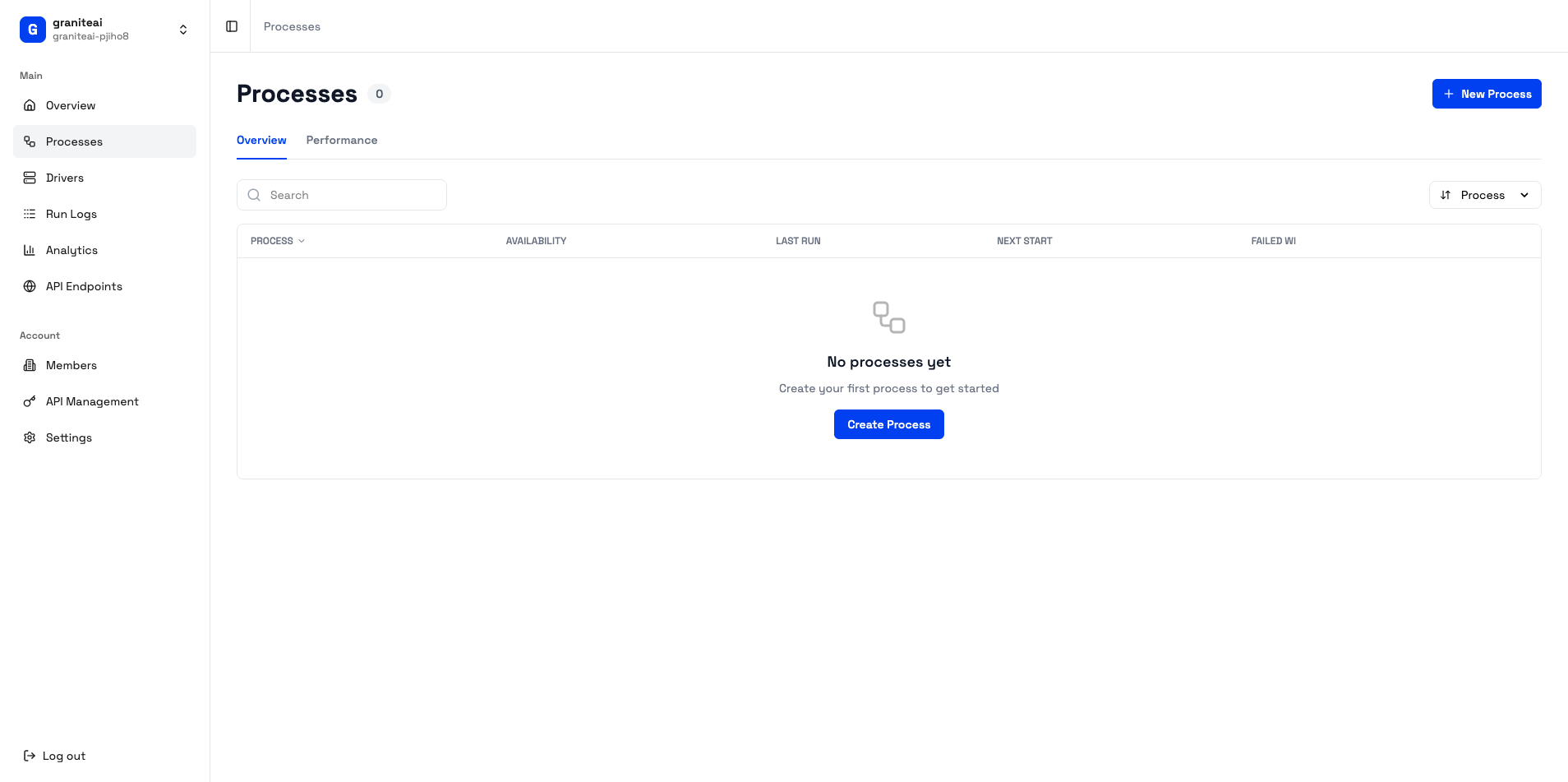
Viewing Processes
The Processes page shows all your automations:- Search - Find processes by name
- Filter - By status (draft, ready, archived)
- Sort - By name, date created, last run
Creating a New Process
1
Click New Process
Hit the + New Process button in the top right
2
Enter Details
3
Save
Click Create to save your process
Process Details View
Click any process to see its details:- Overview
- Performance
- Documentation
- Settings
- Process name and description
- Current status
- Last execution info
- Quick run button
Running a Process
From the process detail page:- Click the Run button
- Fill in any required parameters
- Choose HITL mode (if configurable)
- Click Start Execution
Process Status
Workflow Visualization
Some processes show a visual workflow diagram: This helps you understand the automation steps at a glance.Editing a Process
To modify an existing process:- Open the process detail page
- Click Edit in the settings tab
- Make your changes
- Click Save
Archiving vs. Deleting
Duplicating a Process
To create a copy:- Open the process
- Click the … menu
- Select Duplicate
- Give it a new name
Bulk Actions
Select multiple processes to:- Archive them all
- Delete them all
- Export their configurations
Tips for Good Processes
Use descriptive names
Use descriptive names
Bad: “Process 1”
Good: “Daily CRM Data Export to Excel”
Write clear descriptions
Write clear descriptions
Include:
- What the automation does
- What inputs it needs
- What outputs it produces
Start simple
Start simple
Build and test one step at a time. Don’t try to automate everything at once.
Use parameters
Use parameters
Instead of hardcoding values, use parameters so you can reuse the process with different inputs.
Next Steps
Run an Agent
Execute your process
Create RPA Scripts
Build reliable automations