What Are API Endpoints?

API Endpoints let you trigger automations from external systems. Turn any process into a REST API that can be called from:
  • Webhooks
  • Cron jobs
  • Other applications
  • CI/CD pipelines
  • Custom integrations
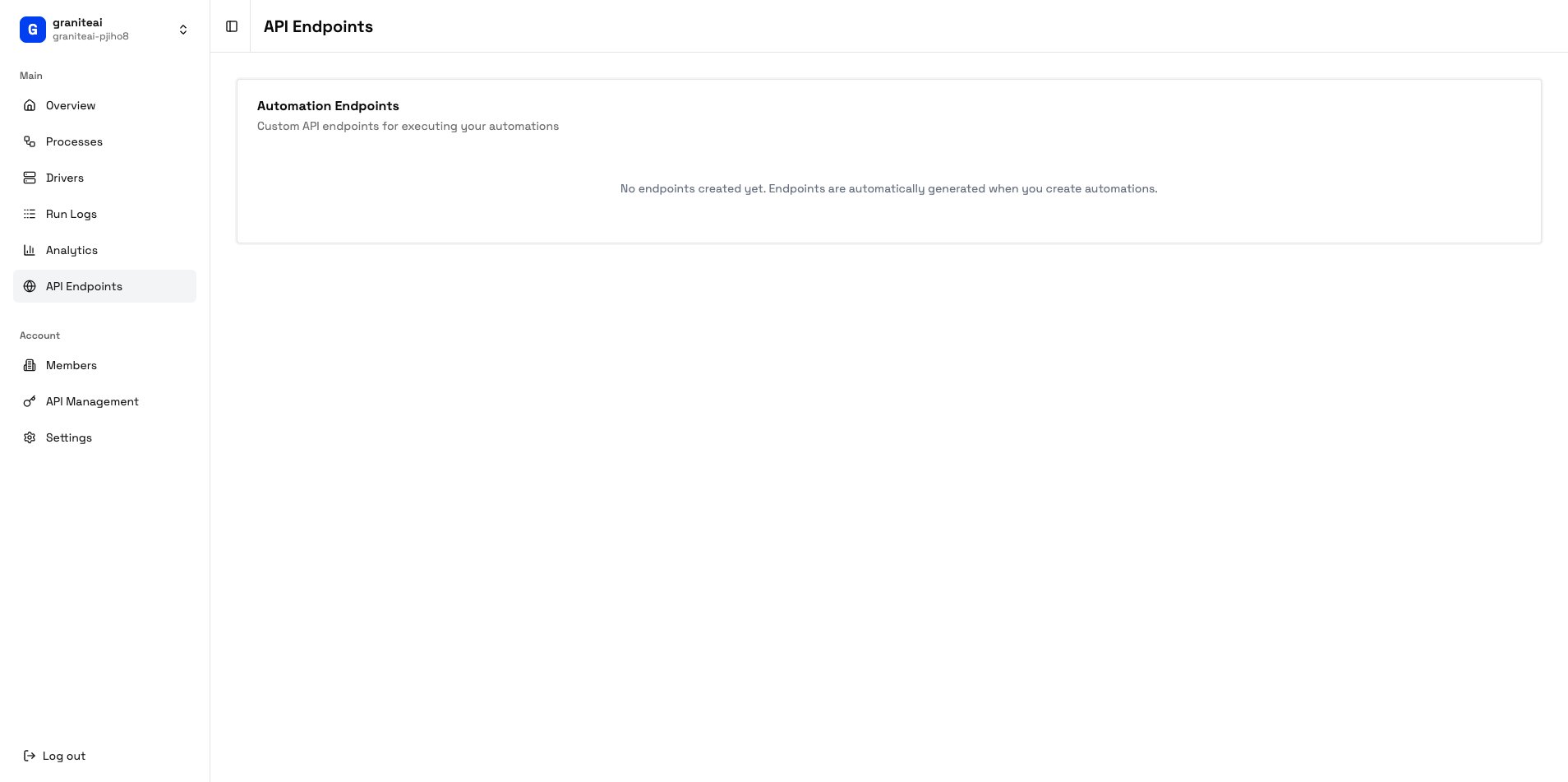
API Endpoints page

Creating an Endpoint

1

Go to API Endpoints

Navigate to API Endpoints in the sidebar
2

Click Create Endpoint

Hit the + Create Endpoint button
3

Configure the Endpoint

FieldDescriptionExample
NameDescriptive name”Generate Monthly Report”
SlugURL pathgenerate-report
ProcessWhich process to runSelect from dropdown
MethodHTTP methodGET, POST
4

Save

Click Create to generate the endpoint

Endpoint URL Structure

Your endpoints follow this pattern:
https://api.getgranite.ai/api/{org-slug}/{endpoint-slug}
For example:
https://api.getgranite.ai/api/acme-corp/generate-report

Authentication

All API endpoints require authentication via the X-Granite-API-Key header:
curl -X POST "https://api.getgranite.ai/api/acme-corp/generate-report" \
  -H "X-Granite-API-Key: gk_live_abc123..." \
  -H "Content-Type: application/json" \
  -d '{"month": "January"}'
Never expose your API key in client-side code or public repositories. Keep it server-side only.

Passing Parameters

Send parameters as JSON in the request body:
curl -X POST "https://api.getgranite.ai/api/acme-corp/process-invoice" \
  -H "X-Granite-API-Key: gk_live_abc123..." \
  -H "Content-Type: application/json" \
  -d '{
    "invoiceNumber": "INV-2024-001",
    "amount": 1500.00,
    "vendor": "Acme Supplies"
  }'
These parameters are available to your automation during execution.

Testing Endpoints

Test your endpoint directly from the dashboard:
1

Open the Endpoint

Click on the endpoint you want to test
2

Enter Test Parameters

Fill in the parameter form with test values
3

Click Test

The endpoint will be called and you’ll see the response

Example Test Response

{
  "runId": "run_abc123",
  "status": "queued",
  "message": "Automation queued successfully",
  "estimatedWait": "30s"
}

Response Formats

Synchronous (Wait for Result)

Add ?wait=true to wait for completion:
curl -X POST "https://api.getgranite.ai/api/acme-corp/quick-task?wait=true" \
  -H "X-Granite-API-Key: gk_live_abc123..."
Response:
{
  "runId": "run_abc123",
  "status": "completed",
  "duration": 45000,
  "result": {
    "output": "Task completed successfully"
  }
}

Asynchronous (Fire and Forget)

Default behavior returns immediately:
{
  "runId": "run_abc123",
  "status": "queued"
}
Then poll for status:
curl "https://api.getgranite.ai/api/agent-runs/run_abc123" \
  -H "X-Granite-API-Key: gk_live_abc123..."

Endpoint Settings

SettingDescription
EnabledToggle endpoint on/off
Rate LimitMax calls per minute
TimeoutMax wait time for sync calls
HITL ModeWhether to require human approval
API-triggered automations typically run without HITL approval for full automation. Configure carefully.

cURL Examples

The dashboard generates ready-to-use cURL commands:
curl -X POST "https://api.getgranite.ai/api/acme-corp/my-endpoint" \
  -H "X-Granite-API-Key: YOUR_API_KEY"

Error Responses

Status CodeMeaning
200Success
400Bad request (invalid parameters)
401Unauthorized (invalid/missing API key)
404Endpoint not found
429Rate limit exceeded
500Server error

Error Response Format

{
  "error": "invalid_parameters",
  "message": "Required parameter 'invoiceNumber' is missing",
  "code": 400
}

Monitoring Endpoint Usage

Track your API usage in the Analytics dashboard:
  • Total calls - How often the endpoint is called
  • Success rate - Percentage of successful invocations
  • Avg latency - Response time
  • Top callers - If using multiple API keys

Next Steps