

Team Management
The Members page lets you invite colleagues, manage roles, and control access to your organization.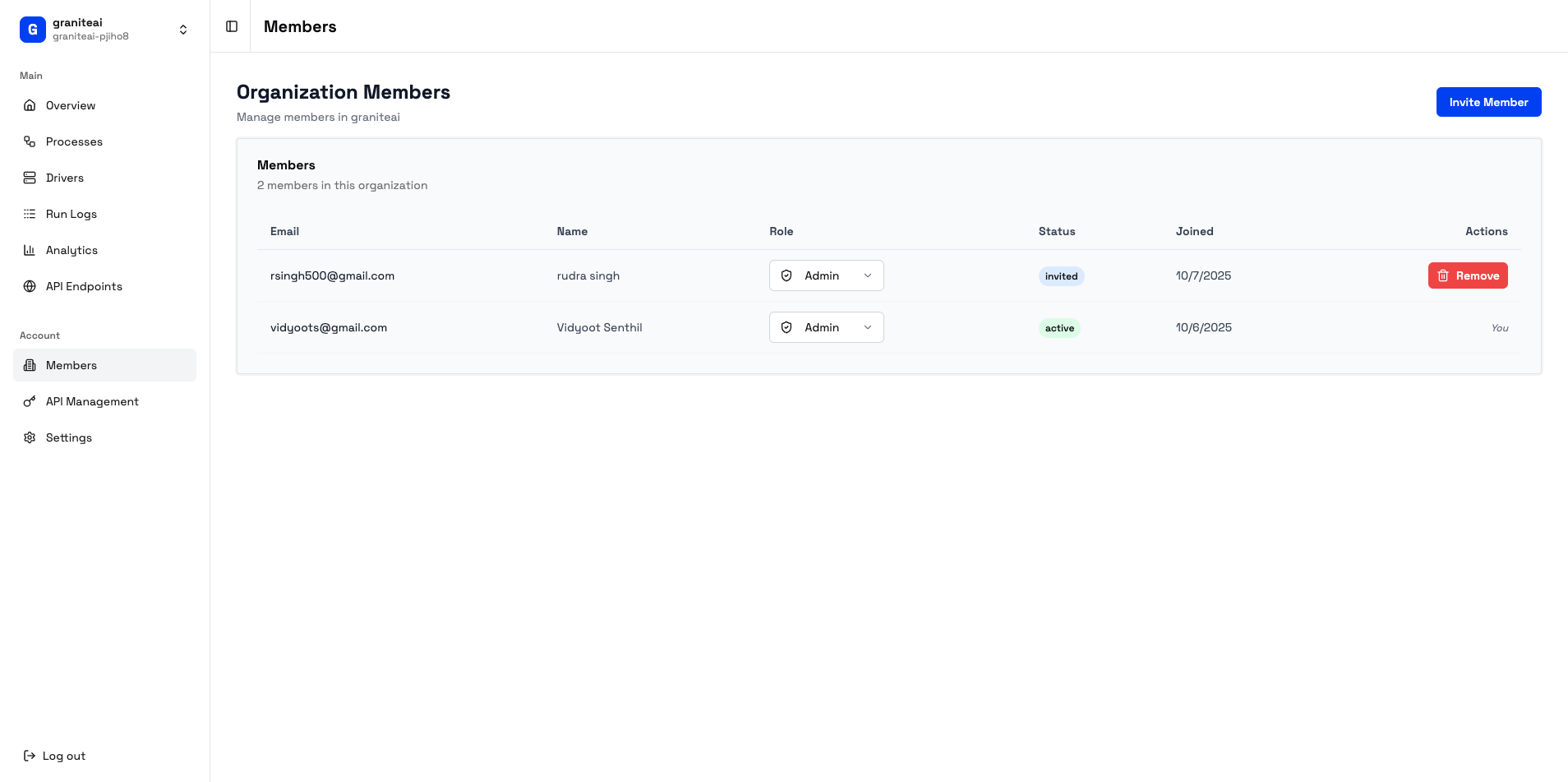
Member List
View all members of your organization:Roles and Permissions
- Admin
- Member
- Viewer
Full access to everything:
- Create and edit processes
- Run automations
- View all logs and analytics
- Manage API keys and endpoints
- Invite and remove members
- Change member roles
- Access organization settings
Inviting Members
1
Click Invite Member
Hit the + Invite button
2
Enter Email Address
Type the email of the person you want to invite
3
Select Role
Choose Admin, Member, or Viewer
4
Send Invitation
Click Send InviteThey’ll receive an email with a link to join.
Invites are tied to specific email addresses. The recipient must use that exact email to join.
Changing Roles
To change a member’s role:- Find them in the member list
- Click the role dropdown
- Select the new role
- Changes take effect immediately
Removing Members
To remove a member:- Find them in the list
- Click the … menu
- Select Remove Member
- Confirm removal
- Lose access immediately
- Can be re-invited later
- Don’t lose their personal Granite account
Pending Invitations
View invitations that haven’t been accepted:
You can:
- Resend - Send the invite email again
- Revoke - Cancel the invitation
Best Practices
Use the principle of least privilege
Use the principle of least privilege
Give members only the access they need. Start with Viewer, upgrade to Member when needed.
Have multiple Admins
Have multiple Admins
Don’t rely on a single Admin. If they leave or lose access, someone else needs to manage the org.
Review membership regularly
Review membership regularly
Remove people who no longer need access. Check quarterly.
Use work emails
Use work emails
Invite people with company email addresses, not personal ones. Easier to manage offboarding.
Audit Trail
All member changes are logged:- Who was invited and by whom
- Role changes
- Removals
SDK Example
Manage members programmatically:Next Steps
Organization Settings
Configure org-wide settings
API Management
Manage API access