> ## Documentation Index
> Fetch the complete documentation index at: https://docs.getgranite.ai/llms.txt
> Use this file to discover all available pages before exploring further.
# Quickstart
> Get your first automation running in 5 minutes
You'll need a Granite account to follow along. [Sign up free](https://app.getgranite.ai) if you haven't already.
## What You'll Build
By the end of this guide, you'll have:
* Created a process in Granite
* Run an AI agent to execute a task
* Watched the execution in real-time with HITL controls
## Prerequisites
* A Granite account
* Chrome or Firefox browser
* 5 minutes
## Step 1: Log In
Navigate to [app.getgranite.ai](https://app.getgranite.ai)
Type your email address and click **Continue**
Click the magic link in your email to sign in
You can also use **Sign in with Google** for faster access.
## Step 2: Create Your First Process
Click **Processes** in the sidebar
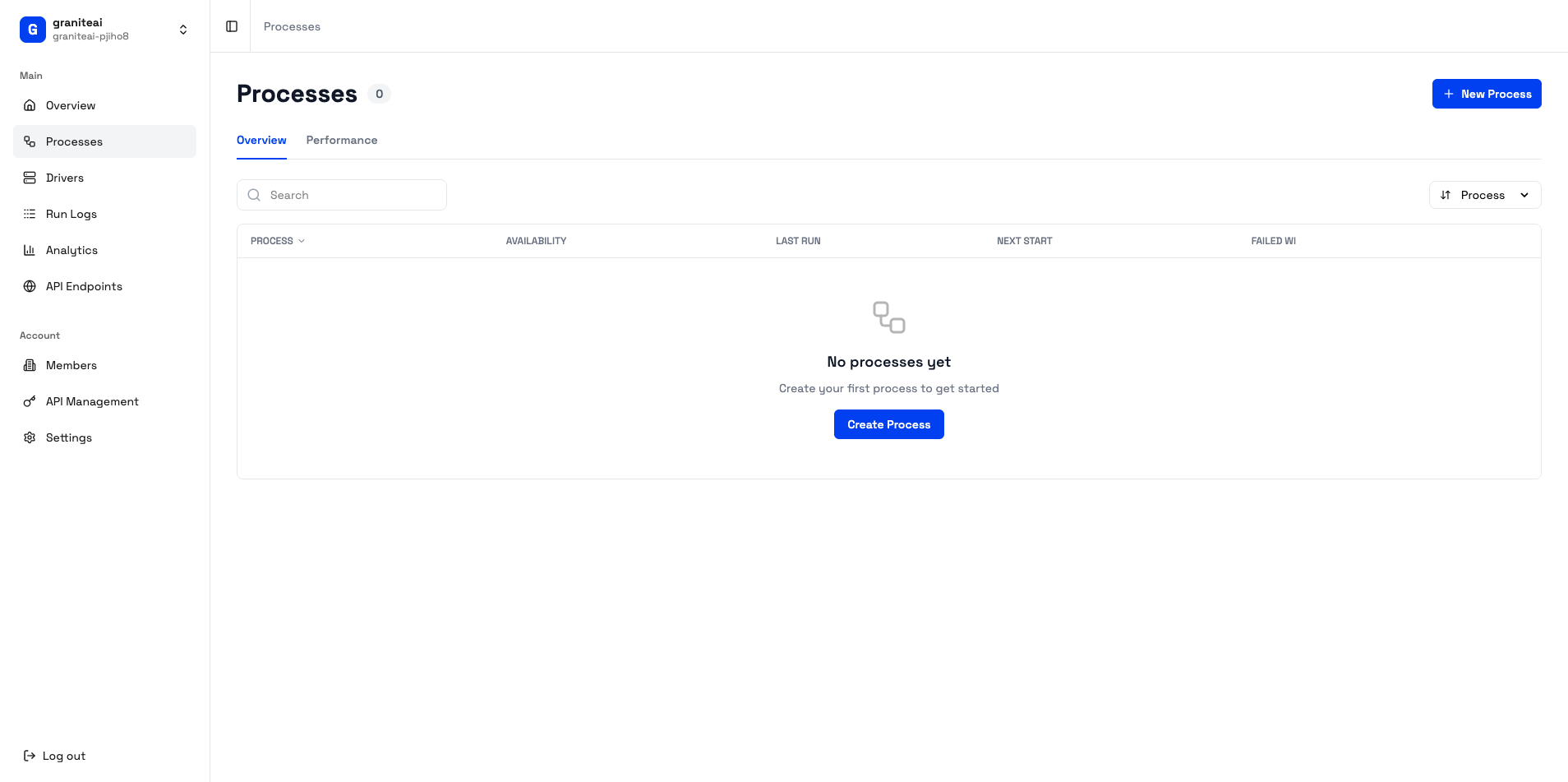 Click the **+ New Process** button
Enter a descriptive name like "Open Notepad and Type Hello"
In the description field, explain what you want to automate:
```
Open Notepad on Windows, type "Hello from Granite!",
and save the file as hello.txt on the Desktop
```
## Step 3: Run the Agent
Hit the **Run** button to start the agent execution
You'll see a live video stream of the Windows desktop
The chat panel shows each action the agent takes:
* Opening applications
* Clicking elements
* Typing text
* Saving files
## Step 4: Use HITL Controls
During execution, you have full control:
Let the current action proceed
Change the action before it executes
Skip the current action
Stop the entire execution
HITL mode pauses execution for your approval on sensitive actions. This keeps you in control of what happens on the target machine.
## Step 5: View Results
After execution completes:
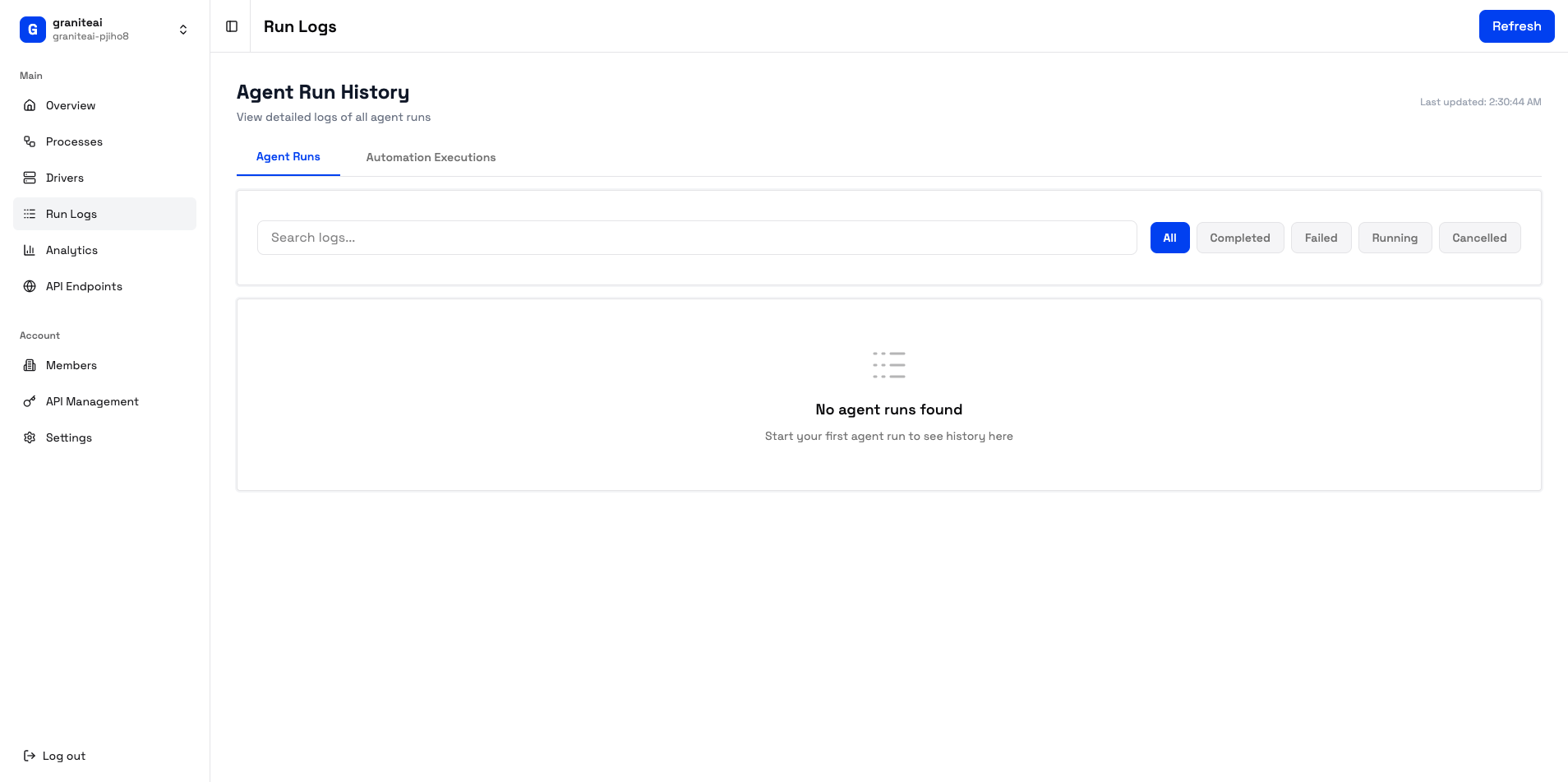
1. Check **Run Logs** to see the full execution history
2. View **screenshots** captured during the run
3. Download the **recording** for review
Click the **+ New Process** button
Enter a descriptive name like "Open Notepad and Type Hello"
In the description field, explain what you want to automate:
```
Open Notepad on Windows, type "Hello from Granite!",
and save the file as hello.txt on the Desktop
```
## Step 3: Run the Agent
Hit the **Run** button to start the agent execution
You'll see a live video stream of the Windows desktop
The chat panel shows each action the agent takes:
* Opening applications
* Clicking elements
* Typing text
* Saving files
## Step 4: Use HITL Controls
During execution, you have full control:
Let the current action proceed
Change the action before it executes
Skip the current action
Stop the entire execution
HITL mode pauses execution for your approval on sensitive actions. This keeps you in control of what happens on the target machine.
## Step 5: View Results
After execution completes:
1. Check **Run Logs** to see the full execution history
2. View **screenshots** captured during the run
3. Download the **recording** for review
 ## What's Next?
Build repeatable automations with Python
Trigger automations from external systems
Master human-in-the-loop workflows
Track your automation performance
## Troubleshooting
* Check your spam/junk folder
* Make sure you entered the correct email
* Try again or use Google OAuth instead
* Ensure you have at least one driver machine connected
* Check the **Driver Management** page for machine status
* Verify the driver is online (green status)
* Check your browser allows WebRTC connections
* Try refreshing the page
* Ensure you're not behind a restrictive firewall
## What's Next?
Build repeatable automations with Python
Trigger automations from external systems
Master human-in-the-loop workflows
Track your automation performance
## Troubleshooting
* Check your spam/junk folder
* Make sure you entered the correct email
* Try again or use Google OAuth instead
* Ensure you have at least one driver machine connected
* Check the **Driver Management** page for machine status
* Verify the driver is online (green status)
* Check your browser allows WebRTC connections
* Try refreshing the page
* Ensure you're not behind a restrictive firewall