> ## Documentation Index
> Fetch the complete documentation index at: https://docs.getgranite.ai/llms.txt
> Use this file to discover all available pages before exploring further.
# Processes
> Create and manage your automation processes
## What are Processes?
A **Process** is a reusable automation definition. You create it once, then run it whenever you need.
 ## Viewing Processes
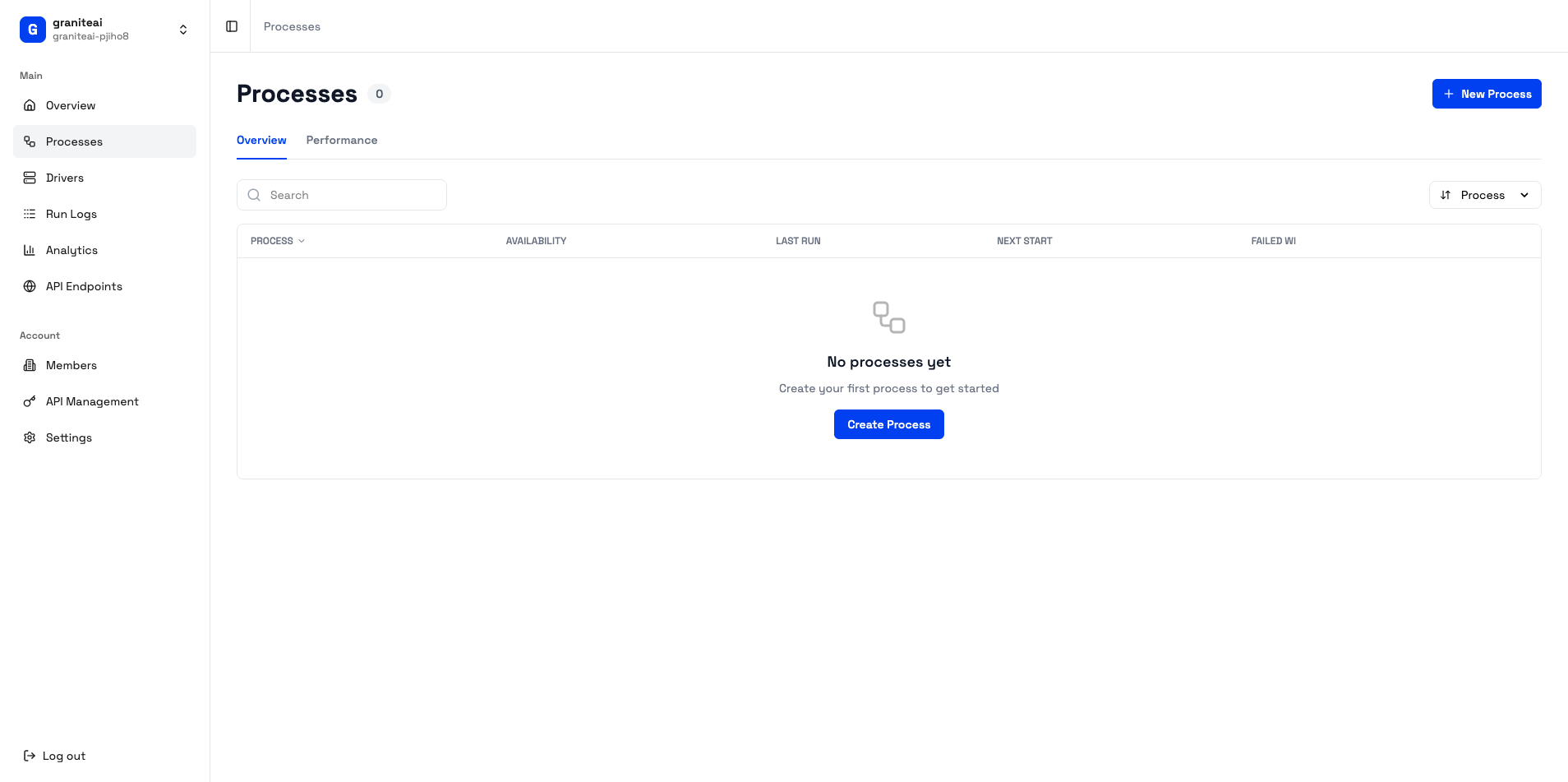
The Processes page shows all your automations:
* **Search** - Find processes by name
* **Filter** - By status (draft, ready, archived)
* **Sort** - By name, date created, last run
## Creating a New Process
Hit the **+ New Process** button in the top right
| Field | Description | Example |
| --------------- | ------------------------ | ----------------------------------------------------- |
| **Name** | Short, descriptive title | "Weekly Sales Report" |
| **Description** | What the automation does | "Open Excel, pull data from CRM, generate PDF report" |
Click **Create** to save your process
## Process Details View
Click any process to see its details:
* Process name and description
* Current status
* Last execution info
* Quick run button
* Execution history chart
* Success/failure rates
* Average duration
* Recent runs list
* Auto-generated docs
* Parameters and inputs
* Expected outputs
* Edit name/description
* Configure HITL settings
* Archive or delete
## Running a Process
From the process detail page:
1. Click the **Run** button
2. Fill in any required parameters
3. Choose HITL mode (if configurable)
4. Click **Start Execution**
You'll be taken to the [Agent Run](/dashboard/agent-run) page to watch the execution.
## Process Status
| Status | Meaning |
| ------------ | ------------------------------------ |
| **Draft** | Still being configured, not runnable |
| **Ready** | Can be executed |
| **Running** | Currently executing |
| **Archived** | No longer active, hidden by default |
## Workflow Visualization
Some processes show a visual workflow diagram:
```mermaid theme={null}
graph LR
A[Start] --> B[Open App]
B --> C[Log In]
C --> D[Navigate]
D --> E[Extract Data]
E --> F[Save Report]
F --> G[End]
```
This helps you understand the automation steps at a glance.
## Editing a Process
To modify an existing process:
1. Open the process detail page
2. Click **Edit** in the settings tab
3. Make your changes
4. Click **Save**
Editing a process doesn't affect past executions. Only future runs use the updated configuration.
## Archiving vs. Deleting
| Action | What Happens |
| ----------- | ------------------------------------------------- |
| **Archive** | Hides the process, keeps history, can be restored |
| **Delete** | Permanently removes the process and all its data |
Archive processes you're not using anymore. Delete only when you're sure you won't need the data.
## Duplicating a Process
To create a copy:
1. Open the process
2. Click the **...** menu
3. Select **Duplicate**
4. Give it a new name
This is useful when you want a similar process with slight variations.
## Bulk Actions
Select multiple processes to:
* Archive them all
* Delete them all
* Export their configurations
## Tips for Good Processes
Bad: "Process 1"
Good: "Daily CRM Data Export to Excel"
Include:
* What the automation does
* What inputs it needs
* What outputs it produces
Build and test one step at a time. Don't try to automate everything at once.
Instead of hardcoding values, use parameters so you can reuse the process with different inputs.
## Next Steps
Execute your process
Build reliable automations
## Viewing Processes
The Processes page shows all your automations:
* **Search** - Find processes by name
* **Filter** - By status (draft, ready, archived)
* **Sort** - By name, date created, last run
## Creating a New Process
Hit the **+ New Process** button in the top right
| Field | Description | Example |
| --------------- | ------------------------ | ----------------------------------------------------- |
| **Name** | Short, descriptive title | "Weekly Sales Report" |
| **Description** | What the automation does | "Open Excel, pull data from CRM, generate PDF report" |
Click **Create** to save your process
## Process Details View
Click any process to see its details:
* Process name and description
* Current status
* Last execution info
* Quick run button
* Execution history chart
* Success/failure rates
* Average duration
* Recent runs list
* Auto-generated docs
* Parameters and inputs
* Expected outputs
* Edit name/description
* Configure HITL settings
* Archive or delete
## Running a Process
From the process detail page:
1. Click the **Run** button
2. Fill in any required parameters
3. Choose HITL mode (if configurable)
4. Click **Start Execution**
You'll be taken to the [Agent Run](/dashboard/agent-run) page to watch the execution.
## Process Status
| Status | Meaning |
| ------------ | ------------------------------------ |
| **Draft** | Still being configured, not runnable |
| **Ready** | Can be executed |
| **Running** | Currently executing |
| **Archived** | No longer active, hidden by default |
## Workflow Visualization
Some processes show a visual workflow diagram:
```mermaid theme={null}
graph LR
A[Start] --> B[Open App]
B --> C[Log In]
C --> D[Navigate]
D --> E[Extract Data]
E --> F[Save Report]
F --> G[End]
```
This helps you understand the automation steps at a glance.
## Editing a Process
To modify an existing process:
1. Open the process detail page
2. Click **Edit** in the settings tab
3. Make your changes
4. Click **Save**
Editing a process doesn't affect past executions. Only future runs use the updated configuration.
## Archiving vs. Deleting
| Action | What Happens |
| ----------- | ------------------------------------------------- |
| **Archive** | Hides the process, keeps history, can be restored |
| **Delete** | Permanently removes the process and all its data |
Archive processes you're not using anymore. Delete only when you're sure you won't need the data.
## Duplicating a Process
To create a copy:
1. Open the process
2. Click the **...** menu
3. Select **Duplicate**
4. Give it a new name
This is useful when you want a similar process with slight variations.
## Bulk Actions
Select multiple processes to:
* Archive them all
* Delete them all
* Export their configurations
## Tips for Good Processes
Bad: "Process 1"
Good: "Daily CRM Data Export to Excel"
Include:
* What the automation does
* What inputs it needs
* What outputs it produces
Build and test one step at a time. Don't try to automate everything at once.
Instead of hardcoding values, use parameters so you can reuse the process with different inputs.
## Next Steps
Execute your process
Build reliable automations