> ## Documentation Index
> Fetch the complete documentation index at: https://docs.getgranite.ai/llms.txt
> Use this file to discover all available pages before exploring further.
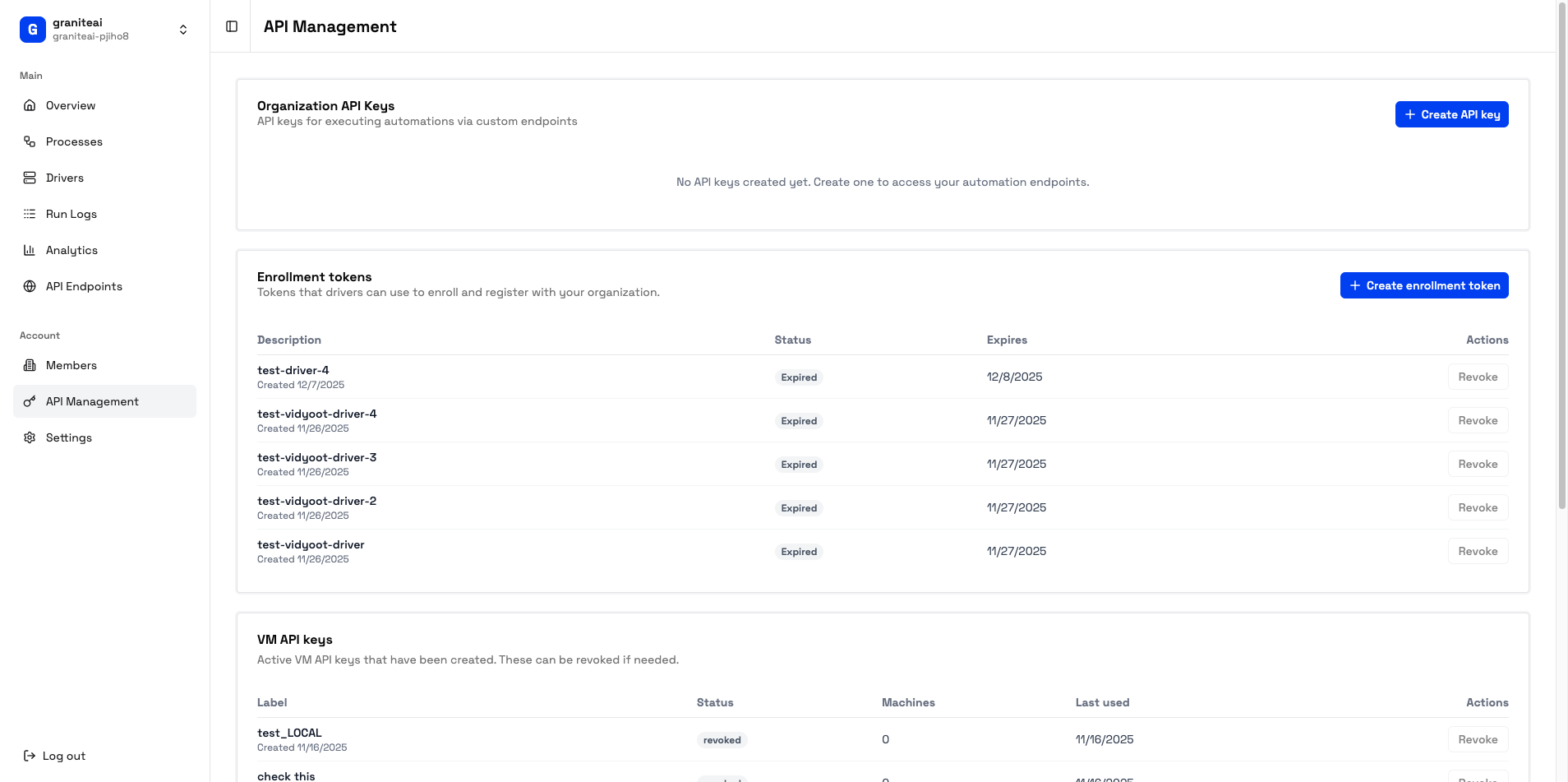
# API Management
> Manage API keys, enrollment tokens, and driver machines
## Overview
The API Management page is your central hub for:
* **API Keys** - Authenticate external API calls
* **Enrollment Tokens** - Register new driver machines
* **VM Machines** - Monitor connected drivers
 ***
## API Keys
API keys authenticate requests to your public endpoints.
### Creating an API Key
In the API Keys section, click **+ Create Key**
Give it a descriptive name like "Production Backend" or "CI/CD Pipeline"
**Important:** Copy the key immediately. It's only shown once!
```
gk_live_a1b2c3d4e5f6g7h8i9j0...
```
**Store your API key securely.** It grants full access to run automations. If compromised, revoke it immediately and create a new one.
### Using API Keys
Include the key in the `X-Granite-API-Key` header:
```bash theme={null}
curl -X POST "https://api.getgranite.ai/api/your-org/endpoint" \
-H "X-Granite-API-Key: gk_live_abc123..."
```
### Managing Keys
| Action | How |
| ---------- | -------------------------------------- |
| **View** | See key name, creation date, last used |
| **Revoke** | Click the trash icon to delete |
You can have multiple API keys for different services or environments.
### API Key Best Practices
Create distinct keys for production, staging, and different integrations. If one is compromised, you only revoke that one.
Every 90 days, create a new key and phase out the old one.
Use environment variables or secret managers instead.
Check Analytics to see if keys are being used unexpectedly.
***
## Enrollment Tokens
Enrollment tokens are one-time-use codes for registering new driver machines.
### Creating an Enrollment Token
In the Enrollment Tokens section, click **+ Create Token**
A new token is generated:
```
enroll_x7y8z9a1b2c3...
```
Run the driver with this token to register it to your organization
### Token Properties
| Property | Description |
| ---------------------- | ----------------------------------- |
| **One-time use** | Token is consumed after enrollment |
| **24-hour expiry** | Unused tokens expire after 24 hours |
| **Organization-bound** | Driver joins your specific org |
### Revoking Tokens
If a token hasn't been used yet, you can revoke it:
1. Find the token in the list
2. Click the trash icon
3. Confirm revocation
***
## VM Machines (Drivers)
View all driver machines connected to your organization.
### Machine List
Each entry shows:
| Field | Description |
| --------------- | --------------------------------------------- |
| **Name** | Machine identifier |
| **Status** | Online (green), Offline (gray), Busy (yellow) |
| **Last Seen** | When it last communicated |
| **Current Job** | What it's working on (if busy) |
### Machine Status
Ready to accept jobs
Currently running an automation
Not connected
### Managing Machines
From the machine detail view, you can:
* **View details** - IP address, OS version, capabilities
* **See job history** - What it has run recently
* **Remove machine** - Unregister from your organization
Removing a machine means it can't run automations for your organization anymore. You'll need a new enrollment token to re-add it.
***
## Queue Status
The API Management page also shows queue metrics:
| Metric | Description |
| ------------------ | -------------------------------- |
| **Jobs Queued** | Automations waiting for a driver |
| **Avg Wait Time** | How long jobs wait in queue |
| **Active Drivers** | Number of online machines |
If wait times are high and you have many queued jobs, consider adding more driver machines.
***
## SDK Example
Manage API keys programmatically:
```typescript theme={null}
import { client } from '@getgraniteai/ts-sdk';
// List API keys
const keys = await client.listApiKeys({
organizationId: 'org_123'
});
// Create new key
const newKey = await client.createApiKey({
organizationId: 'org_123',
name: 'Production Backend'
});
// Revoke key
await client.revokeApiKey({
organizationId: 'org_123',
keyId: 'key_abc'
});
```
***
## Next Steps
Create endpoints to call
Add more machines
***
## API Keys
API keys authenticate requests to your public endpoints.
### Creating an API Key
In the API Keys section, click **+ Create Key**
Give it a descriptive name like "Production Backend" or "CI/CD Pipeline"
**Important:** Copy the key immediately. It's only shown once!
```
gk_live_a1b2c3d4e5f6g7h8i9j0...
```
**Store your API key securely.** It grants full access to run automations. If compromised, revoke it immediately and create a new one.
### Using API Keys
Include the key in the `X-Granite-API-Key` header:
```bash theme={null}
curl -X POST "https://api.getgranite.ai/api/your-org/endpoint" \
-H "X-Granite-API-Key: gk_live_abc123..."
```
### Managing Keys
| Action | How |
| ---------- | -------------------------------------- |
| **View** | See key name, creation date, last used |
| **Revoke** | Click the trash icon to delete |
You can have multiple API keys for different services or environments.
### API Key Best Practices
Create distinct keys for production, staging, and different integrations. If one is compromised, you only revoke that one.
Every 90 days, create a new key and phase out the old one.
Use environment variables or secret managers instead.
Check Analytics to see if keys are being used unexpectedly.
***
## Enrollment Tokens
Enrollment tokens are one-time-use codes for registering new driver machines.
### Creating an Enrollment Token
In the Enrollment Tokens section, click **+ Create Token**
A new token is generated:
```
enroll_x7y8z9a1b2c3...
```
Run the driver with this token to register it to your organization
### Token Properties
| Property | Description |
| ---------------------- | ----------------------------------- |
| **One-time use** | Token is consumed after enrollment |
| **24-hour expiry** | Unused tokens expire after 24 hours |
| **Organization-bound** | Driver joins your specific org |
### Revoking Tokens
If a token hasn't been used yet, you can revoke it:
1. Find the token in the list
2. Click the trash icon
3. Confirm revocation
***
## VM Machines (Drivers)
View all driver machines connected to your organization.
### Machine List
Each entry shows:
| Field | Description |
| --------------- | --------------------------------------------- |
| **Name** | Machine identifier |
| **Status** | Online (green), Offline (gray), Busy (yellow) |
| **Last Seen** | When it last communicated |
| **Current Job** | What it's working on (if busy) |
### Machine Status
Ready to accept jobs
Currently running an automation
Not connected
### Managing Machines
From the machine detail view, you can:
* **View details** - IP address, OS version, capabilities
* **See job history** - What it has run recently
* **Remove machine** - Unregister from your organization
Removing a machine means it can't run automations for your organization anymore. You'll need a new enrollment token to re-add it.
***
## Queue Status
The API Management page also shows queue metrics:
| Metric | Description |
| ------------------ | -------------------------------- |
| **Jobs Queued** | Automations waiting for a driver |
| **Avg Wait Time** | How long jobs wait in queue |
| **Active Drivers** | Number of online machines |
If wait times are high and you have many queued jobs, consider adding more driver machines.
***
## SDK Example
Manage API keys programmatically:
```typescript theme={null}
import { client } from '@getgraniteai/ts-sdk';
// List API keys
const keys = await client.listApiKeys({
organizationId: 'org_123'
});
// Create new key
const newKey = await client.createApiKey({
organizationId: 'org_123',
name: 'Production Backend'
});
// Revoke key
await client.revokeApiKey({
organizationId: 'org_123',
keyId: 'key_abc'
});
```
***
## Next Steps
Create endpoints to call
Add more machines