> ## Documentation Index
> Fetch the complete documentation index at: https://docs.getgranite.ai/llms.txt
> Use this file to discover all available pages before exploring further.
# API Endpoints
> Create and manage public API endpoints for your automations
## What Are API Endpoints?
API Endpoints let you trigger automations from external systems. Turn any process into a REST API that can be called from:
* Webhooks
* Cron jobs
* Other applications
* CI/CD pipelines
* Custom integrations
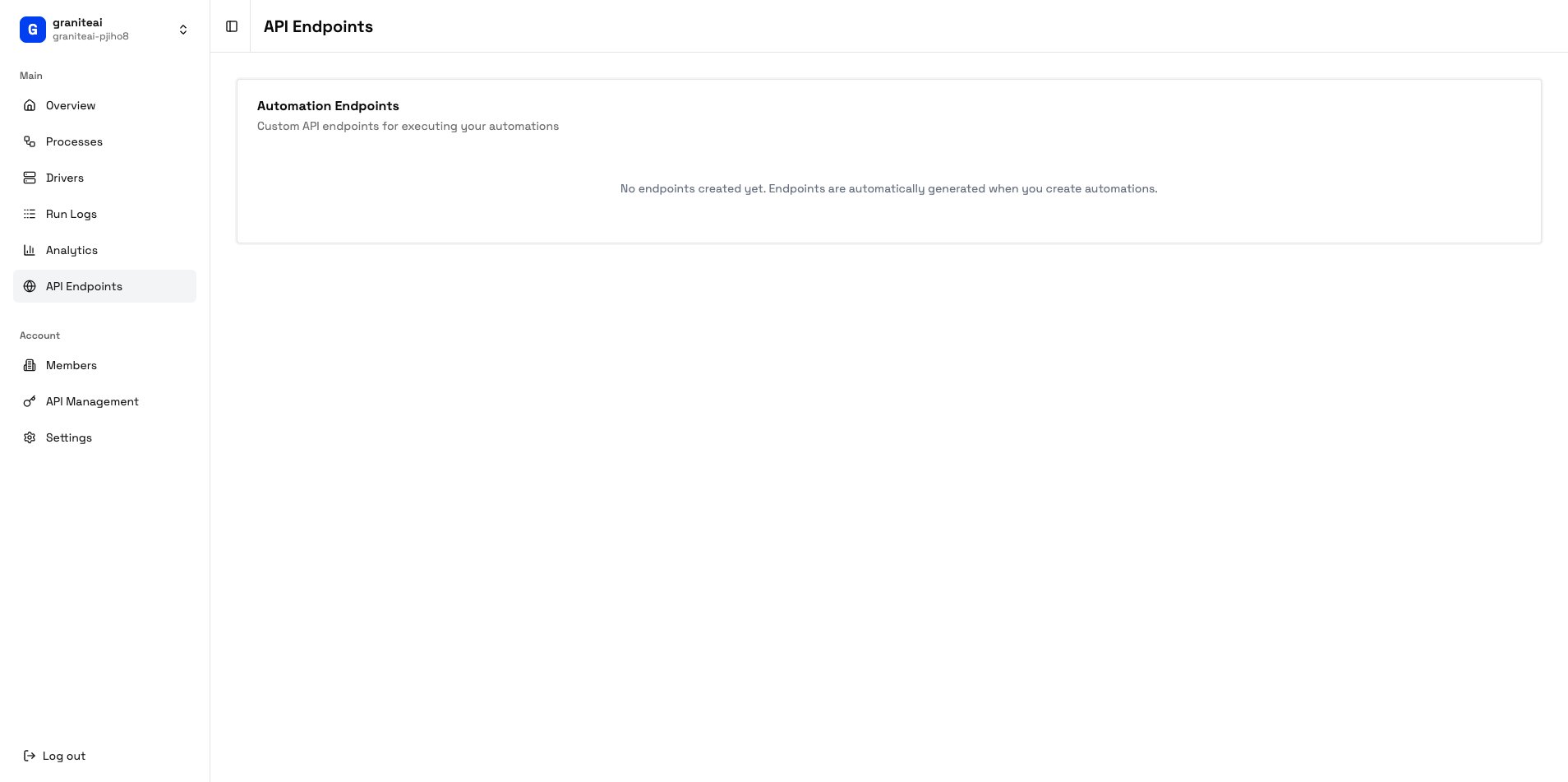 ## Creating an Endpoint
Navigate to **API Endpoints** in the sidebar
Hit the **+ Create Endpoint** button
| Field | Description | Example |
| ----------- | -------------------- | ------------------------- |
| **Name** | Descriptive name | "Generate Monthly Report" |
| **Slug** | URL path | `generate-report` |
| **Process** | Which process to run | Select from dropdown |
| **Method** | HTTP method | GET, POST |
Click **Create** to generate the endpoint
## Endpoint URL Structure
Your endpoints follow this pattern:
```
https://api.getgranite.ai/api/{org-slug}/{endpoint-slug}
```
For example:
```
https://api.getgranite.ai/api/acme-corp/generate-report
```
## Authentication
All API endpoints require authentication via the `X-Granite-API-Key` header:
```bash theme={null}
curl -X POST "https://api.getgranite.ai/api/acme-corp/generate-report" \
-H "X-Granite-API-Key: gk_live_abc123..." \
-H "Content-Type: application/json" \
-d '{"month": "January"}'
```
Never expose your API key in client-side code or public repositories. Keep it server-side only.
## Passing Parameters
Send parameters as JSON in the request body:
```bash theme={null}
curl -X POST "https://api.getgranite.ai/api/acme-corp/process-invoice" \
-H "X-Granite-API-Key: gk_live_abc123..." \
-H "Content-Type: application/json" \
-d '{
"invoiceNumber": "INV-2024-001",
"amount": 1500.00,
"vendor": "Acme Supplies"
}'
```
These parameters are available to your automation during execution.
## Testing Endpoints
Test your endpoint directly from the dashboard:
Click on the endpoint you want to test
Fill in the parameter form with test values
The endpoint will be called and you'll see the response
### Example Test Response
```json theme={null}
{
"runId": "run_abc123",
"status": "queued",
"message": "Automation queued successfully",
"estimatedWait": "30s"
}
```
## Response Formats
### Synchronous (Wait for Result)
Add `?wait=true` to wait for completion:
```bash theme={null}
curl -X POST "https://api.getgranite.ai/api/acme-corp/quick-task?wait=true" \
-H "X-Granite-API-Key: gk_live_abc123..."
```
Response:
```json theme={null}
{
"runId": "run_abc123",
"status": "completed",
"duration": 45000,
"result": {
"output": "Task completed successfully"
}
}
```
### Asynchronous (Fire and Forget)
Default behavior returns immediately:
```json theme={null}
{
"runId": "run_abc123",
"status": "queued"
}
```
Then poll for status:
```bash theme={null}
curl "https://api.getgranite.ai/api/agent-runs/run_abc123" \
-H "X-Granite-API-Key: gk_live_abc123..."
```
## Endpoint Settings
| Setting | Description |
| -------------- | --------------------------------- |
| **Enabled** | Toggle endpoint on/off |
| **Rate Limit** | Max calls per minute |
| **Timeout** | Max wait time for sync calls |
| **HITL Mode** | Whether to require human approval |
API-triggered automations typically run without HITL approval for full automation. Configure carefully.
## cURL Examples
The dashboard generates ready-to-use cURL commands:
```bash theme={null}
curl -X POST "https://api.getgranite.ai/api/acme-corp/my-endpoint" \
-H "X-Granite-API-Key: YOUR_API_KEY"
```
```bash theme={null}
curl -X POST "https://api.getgranite.ai/api/acme-corp/my-endpoint" \
-H "X-Granite-API-Key: YOUR_API_KEY" \
-H "Content-Type: application/json" \
-d '{"param1": "value1", "param2": "value2"}'
```
```bash theme={null}
curl -X POST "https://api.getgranite.ai/api/acme-corp/my-endpoint?wait=true" \
-H "X-Granite-API-Key: YOUR_API_KEY" \
-H "Content-Type: application/json" \
-d '{"param1": "value1"}'
```
## Error Responses
| Status Code | Meaning |
| ----------- | -------------------------------------- |
| `200` | Success |
| `400` | Bad request (invalid parameters) |
| `401` | Unauthorized (invalid/missing API key) |
| `404` | Endpoint not found |
| `429` | Rate limit exceeded |
| `500` | Server error |
### Error Response Format
```json theme={null}
{
"error": "invalid_parameters",
"message": "Required parameter 'invoiceNumber' is missing",
"code": 400
}
```
## Monitoring Endpoint Usage
Track your API usage in the Analytics dashboard:
* **Total calls** - How often the endpoint is called
* **Success rate** - Percentage of successful invocations
* **Avg latency** - Response time
* **Top callers** - If using multiple API keys
## Next Steps
Create and manage API keys
Deep dive into API integration
## Creating an Endpoint
Navigate to **API Endpoints** in the sidebar
Hit the **+ Create Endpoint** button
| Field | Description | Example |
| ----------- | -------------------- | ------------------------- |
| **Name** | Descriptive name | "Generate Monthly Report" |
| **Slug** | URL path | `generate-report` |
| **Process** | Which process to run | Select from dropdown |
| **Method** | HTTP method | GET, POST |
Click **Create** to generate the endpoint
## Endpoint URL Structure
Your endpoints follow this pattern:
```
https://api.getgranite.ai/api/{org-slug}/{endpoint-slug}
```
For example:
```
https://api.getgranite.ai/api/acme-corp/generate-report
```
## Authentication
All API endpoints require authentication via the `X-Granite-API-Key` header:
```bash theme={null}
curl -X POST "https://api.getgranite.ai/api/acme-corp/generate-report" \
-H "X-Granite-API-Key: gk_live_abc123..." \
-H "Content-Type: application/json" \
-d '{"month": "January"}'
```
Never expose your API key in client-side code or public repositories. Keep it server-side only.
## Passing Parameters
Send parameters as JSON in the request body:
```bash theme={null}
curl -X POST "https://api.getgranite.ai/api/acme-corp/process-invoice" \
-H "X-Granite-API-Key: gk_live_abc123..." \
-H "Content-Type: application/json" \
-d '{
"invoiceNumber": "INV-2024-001",
"amount": 1500.00,
"vendor": "Acme Supplies"
}'
```
These parameters are available to your automation during execution.
## Testing Endpoints
Test your endpoint directly from the dashboard:
Click on the endpoint you want to test
Fill in the parameter form with test values
The endpoint will be called and you'll see the response
### Example Test Response
```json theme={null}
{
"runId": "run_abc123",
"status": "queued",
"message": "Automation queued successfully",
"estimatedWait": "30s"
}
```
## Response Formats
### Synchronous (Wait for Result)
Add `?wait=true` to wait for completion:
```bash theme={null}
curl -X POST "https://api.getgranite.ai/api/acme-corp/quick-task?wait=true" \
-H "X-Granite-API-Key: gk_live_abc123..."
```
Response:
```json theme={null}
{
"runId": "run_abc123",
"status": "completed",
"duration": 45000,
"result": {
"output": "Task completed successfully"
}
}
```
### Asynchronous (Fire and Forget)
Default behavior returns immediately:
```json theme={null}
{
"runId": "run_abc123",
"status": "queued"
}
```
Then poll for status:
```bash theme={null}
curl "https://api.getgranite.ai/api/agent-runs/run_abc123" \
-H "X-Granite-API-Key: gk_live_abc123..."
```
## Endpoint Settings
| Setting | Description |
| -------------- | --------------------------------- |
| **Enabled** | Toggle endpoint on/off |
| **Rate Limit** | Max calls per minute |
| **Timeout** | Max wait time for sync calls |
| **HITL Mode** | Whether to require human approval |
API-triggered automations typically run without HITL approval for full automation. Configure carefully.
## cURL Examples
The dashboard generates ready-to-use cURL commands:
```bash theme={null}
curl -X POST "https://api.getgranite.ai/api/acme-corp/my-endpoint" \
-H "X-Granite-API-Key: YOUR_API_KEY"
```
```bash theme={null}
curl -X POST "https://api.getgranite.ai/api/acme-corp/my-endpoint" \
-H "X-Granite-API-Key: YOUR_API_KEY" \
-H "Content-Type: application/json" \
-d '{"param1": "value1", "param2": "value2"}'
```
```bash theme={null}
curl -X POST "https://api.getgranite.ai/api/acme-corp/my-endpoint?wait=true" \
-H "X-Granite-API-Key: YOUR_API_KEY" \
-H "Content-Type: application/json" \
-d '{"param1": "value1"}'
```
## Error Responses
| Status Code | Meaning |
| ----------- | -------------------------------------- |
| `200` | Success |
| `400` | Bad request (invalid parameters) |
| `401` | Unauthorized (invalid/missing API key) |
| `404` | Endpoint not found |
| `429` | Rate limit exceeded |
| `500` | Server error |
### Error Response Format
```json theme={null}
{
"error": "invalid_parameters",
"message": "Required parameter 'invoiceNumber' is missing",
"code": 400
}
```
## Monitoring Endpoint Usage
Track your API usage in the Analytics dashboard:
* **Total calls** - How often the endpoint is called
* **Success rate** - Percentage of successful invocations
* **Avg latency** - Response time
* **Top callers** - If using multiple API keys
## Next Steps
Create and manage API keys
Deep dive into API integration